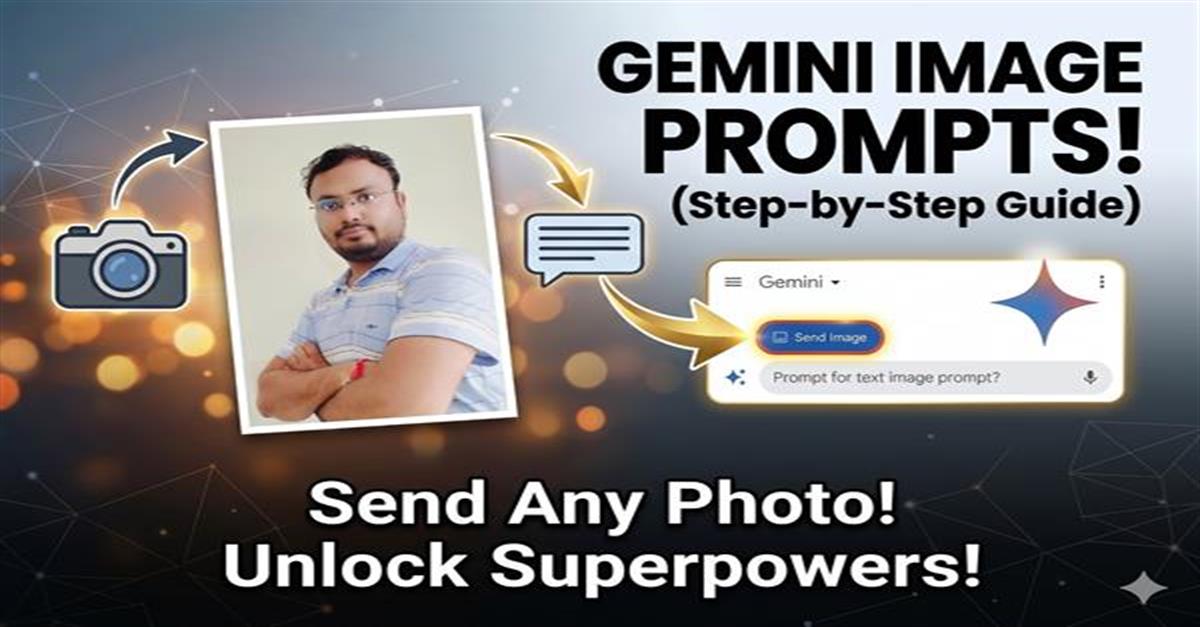

How to Use Image Prompts in Google Gemini AI (Full Guide)
 |
Vivek Jaiswal |
10 |
{{e.like}} |
{{e.dislike}} |
Introduction
Artificial Intelligence has revolutionized how we interact with applications. Combining multi-modal AI capabilities—the ability to process both text and images—opens up exciting possibilities for developers. In this article, we'll explore how to build a powerful ASP.NET Core application that integrates Google Gemini's latest AI model to enable intelligent chat interactions with image analysis.
Whether you're building customer support systems, content analysis tools, or innovative AI-powered features, this guide will walk you through every step.
What We're Building
We're creating a REST API that enables users to:
- Send a text prompt and an image
- Leverage Google Gemini's AI to analyze the image and respond to the prompt
- Receive intelligent, context-aware responses
This could be used for image tagging, content moderation, visual question answering, or any application requiring AI-powered image understanding.
Prerequisites
Before we start, ensure you have:
- .NET 10 SDK installed
- Visual Studio 2022 (Community Edition or higher) or any preferred code editor
- A Google Cloud API key with access to the Gemini API
- Basic knowledge of ASP.NET Core and REST APIs
Project Architecture Overview
Our application follows a clean, layered architecture:
GoogleGeminiChatWithImage/
├── Controllers/
│   └── ChatController.cs
├── Services/
│   └── GeminiService.cs
├── Models/
│   └── ChatWithImageRequest.cs
├── Program.cs
└── appsettings.json
Step 1: Setting Up the ASP.NET Core Project
Create a new ASP.NET Core Web API project:
dotnet new webapi -n GoogleGeminiChatWithImage
cd GoogleGeminiChatWithImage
Update your Program.cs to configure the necessary services:
using Microsoft.OpenApi;

namespace GoogleGeminiChatWithImage
{
    public class Program
    {
        public static void Main(string[] args)
        {
            var builder = WebApplication.CreateBuilder(args);

            builder.Services.AddControllers();
            builder.Services.AddEndpointsApiExplorer();
            builder.Services.AddSwaggerGen(c =>
            {
                c.SwaggerDoc("v1", new OpenApiInfo
                {
                    Title = "GeminiChat API",
                    Version = "v1"
                });
            });

            builder.Services.AddOpenApi();
            // Register the GeminiService with dependency injection
            builder.Services.AddHttpClient<Services.GeminiService>();

            var app = builder.Build();

            if (app.Environment.IsDevelopment())
            {
                app.UseSwagger();
                app.UseSwaggerUI();
            }

            app.UseAuthorization();
            app.MapControllers();
            app.Run();
        }
    }
}
Step 2: Creating the Data Model
Create a ChatWithImageRequest model to handle incoming requests:
namespace GoogleGeminiChatWithImage.Models
{
    public class ChatWithImageRequest
    {
        public string prompt { get; set; } = string.Empty;
        public IFormFile? Image { get; set; }
    }
}
This model captures:
- prompt: The user's text query or instruction
- Image: The image file to analyze
Step 3: Implementing the GeminiService
The heart of our application is the GeminiService class, which communicates with Google's Gemini API:
namespace GoogleGeminiChatWithImage.Services
{
    public class GeminiService
    {
        private readonly HttpClient _httpClient;
        private readonly string _apiKey = "YOUR_GOOGLE_API_KEY";

        public GeminiService(HttpClient httpClient)
        {
            _httpClient = httpClient;
        }

        /// <summary>
        /// Sends a prompt and image to Gemini for processing
        /// </summary>
        public async Task<string> ChatWithImageAsync(string prompt, IFormFile image)
        {
            // Convert image to base64 for API transmission
            await using var imageStream = image.OpenReadStream();
            using var memoryStream = new MemoryStream();
            await imageStream.CopyToAsync(memoryStream);

            var requestBody = new
            {
                contents = new[]
                {
                    new
                    {
                        parts = new object[]
                        {
                            new { text = prompt },
                            new
                            {
                                inlineData = new
                                {
                                    mimeType = image.ContentType,
                                    data = Convert.ToBase64String(memoryStream.ToArray())
                                }
                            }
                        }
                    }
                }
            };

            return await SendRequestAsync(requestBody);
        }

        /// <summary>
        /// Sends the request to Google Gemini API
        /// </summary>
        public async Task<string> SendRequestAsync(object requestBody)
        {
            var request = new HttpRequestMessage(
                HttpMethod.Post,
                "https://generativelanguage.googleapis.com/v1beta/models/gemini-2.5-flash:generateContent"
            );

            request.Headers.Add("x-goog-api-key", _apiKey);
            request.Content = new StringContent(
                System.Text.Json.JsonSerializer.Serialize(requestBody),
                System.Text.Encoding.UTF8,
                "application/json"
            );

            var response = await _httpClient.SendAsync(request);
            var responseContent = await response.Content.ReadAsStringAsync();

            return responseContent;
        }
    }
}
Key Implementation Details:
- Image to Base64 Conversion: The image is converted to a base64 string for transmission to the API
- Multi-part Content: The request includes both text (prompt) and image data
- API Key Authentication: Uses Google's
x-goog-api-keyheader for authentication - Gemini 2.5 Flash Model: We're using the latest, fastest Gemini model optimized for real-time responses
Step 4: Creating the Chat Controller
The controller exposes our API endpoint:
using GoogleGeminiChatWithImage.Models;
using Microsoft.AspNetCore.Mvc;

namespace GoogleGeminiChatWithImage.Controllers
{
    [Route("api/[controller]")]
    [ApiController]
    public class ChatController : ControllerBase
    {
        private readonly Services.GeminiService _geminiService;

        public ChatController(Services.GeminiService geminiService)
        {
            _geminiService = geminiService;
        }

        /// <summary>
        /// Chat with Gemini AI using an image
        /// </summary>
        [HttpPost("Chat-with-Image")]
        public async Task<IActionResult> ChatWithImage([FromForm] ChatWithImageRequest request)
        {
            var response = await _geminiService.ChatWithImageAsync(
                request.prompt,
                request.Image
            );
            return Ok(response);
        }
    }
}
Step 5: Configuring Your API Key
Create or update your appsettings.json:
{
  "Logging": {
    "LogLevel": {
      "Default": "Information",
      "Microsoft.AspNetCore": "Warning"
    }
  },
  "AllowedHosts": "*",
  "GeminiApiKey": "YOUR_GOOGLE_API_KEY_HERE"
}
Important: For production, use Azure Key Vault or environment variables to store sensitive API keys, never commit them to source control.
Step 6: Testing Your API
You can test the endpoint using Swagger UI (available at https://localhost:5001/swagger) or using a tool like Postman.
Example Request:
POST /api/chat/Chat-with-Image HTTP/1.1
Host: localhost:5001
Content-Type: multipart/form-data

prompt: "What's in this image? Describe it in detail."
Image: [binary image file]
Real-World Use Cases
This implementation can power:
- E-Commerce: Product analysis and recommendation systems
- Content Moderation: Automated image review systems
- Accessibility: Image description for visually impaired users
- Document Processing: Extract and analyze information from document images
- Healthcare: Medical image analysis assistance
- Quality Assurance: Automated visual inspection in manufacturing
Performance Considerations
For production deployments:
- Caching: Implement caching for frequently analyzed images
- Rate Limiting: Add rate limiting to prevent API abuse
- Error Handling: Implement comprehensive try-catch blocks and retry logic
- Async/Await: Already using async patterns for scalability
- Connection Pooling: HttpClient is registered as a singleton via dependency injection
Security Best Practices
- API Key Management: Store API keys in secure vaults, not in code
- Input Validation: Validate file types and sizes before processing
- HTTPS Only: Always use HTTPS in production
- CORS: Configure CORS appropriately for your frontend domain
- Rate Limiting: Implement throttling to prevent abuse
Next Steps
To enhance this implementation, consider:
- Adding support for other Gemini models (Pro, Ultra)
- Implementing request/response caching
- Adding comprehensive error handling and logging
- Building a frontend UI for easier testing
- Implementing webhook support for asynchronous processing
- Adding support for multiple file uploads
Conclusion
You've now learned how to build a powerful AI-driven application that combines ASP.NET Core with Google's cutting-edge Gemini API. This architecture demonstrates modern web development practices including dependency injection, async/await patterns, and clean code organization.
The combination of text and image processing opens doors to innovative applications that can understand context in ways traditional software cannot. Start experimenting with different prompts and images to discover new possibilities!
Have questions or want to share your implementation? Drop a comment below or reach out on social media. Happy coding! 🚀
Resources
Comments

|
|
| Follow up comments |
| {{e.Name}} {{e.Comments}} |
{{e.days}} | |
|
|
||
|
|
||
| {{r.Name}} {{r.Comments}} |
{{r.days}} | |
|
|
||